

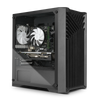
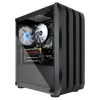
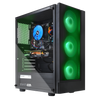
Getting Started
1) Open the external box
Carefully use a sharp tool, such as scissors or a knife, to cut through the tape and open the outer brown box. Our PCs are securely packaged with double or triple boxing to ensure safe delivery.
2) Gently Remove the Retail Box
The retail box is the final layer protecting your new PC and often showcases the design of your purchase. Carefully slide it out of the external box, and check for handles on both sides to make lifting and handling easier.
3) Open the Retail Box
Carefully open the retail box, laying it flat on its top side. Then, lift the box upwards while allowing the PC to gently slide out.
4) Remove the tempered glass panel
The tempered glass panel is secured with four thumbscrews, which can be unscrewed by hand or with a Phillips screwdriver. Place the glass panel on a soft surface to avoid scratches or damage while you proceed to remove the Instapak foam.
5) Remove the Instapak foam
The Instapak foam is designed to protect your video card during shipping. Carefully wiggle it side to side as you slide it out of the PC. Be sure to remove the foam completely before powering on the PC. Once removed, you can dispose of the Instapak foam.
After the foam is removed, proceed to power on and setup your PC!
What’s Inside the Box
- Power Cable
- WiFI Dongle or WiFi Antennas
- Quick Start Guide
Contact Us
📞 Phone: (561) 962-1890
📧 Email: support@blackoutcomputers.com


